
Immersive Room Software for Control, Content and Interaction
Immersive Suite brings together three software tools for operating immersive rooms and creating interactive experiences. Control the room from a tablet, present images, video and live sources, build interactive 360° scenarios and enable touch interaction on projection walls.
The tools can be used separately or together, depending on the installation and how the room will be used.
Three tools. One Immersive Suite.
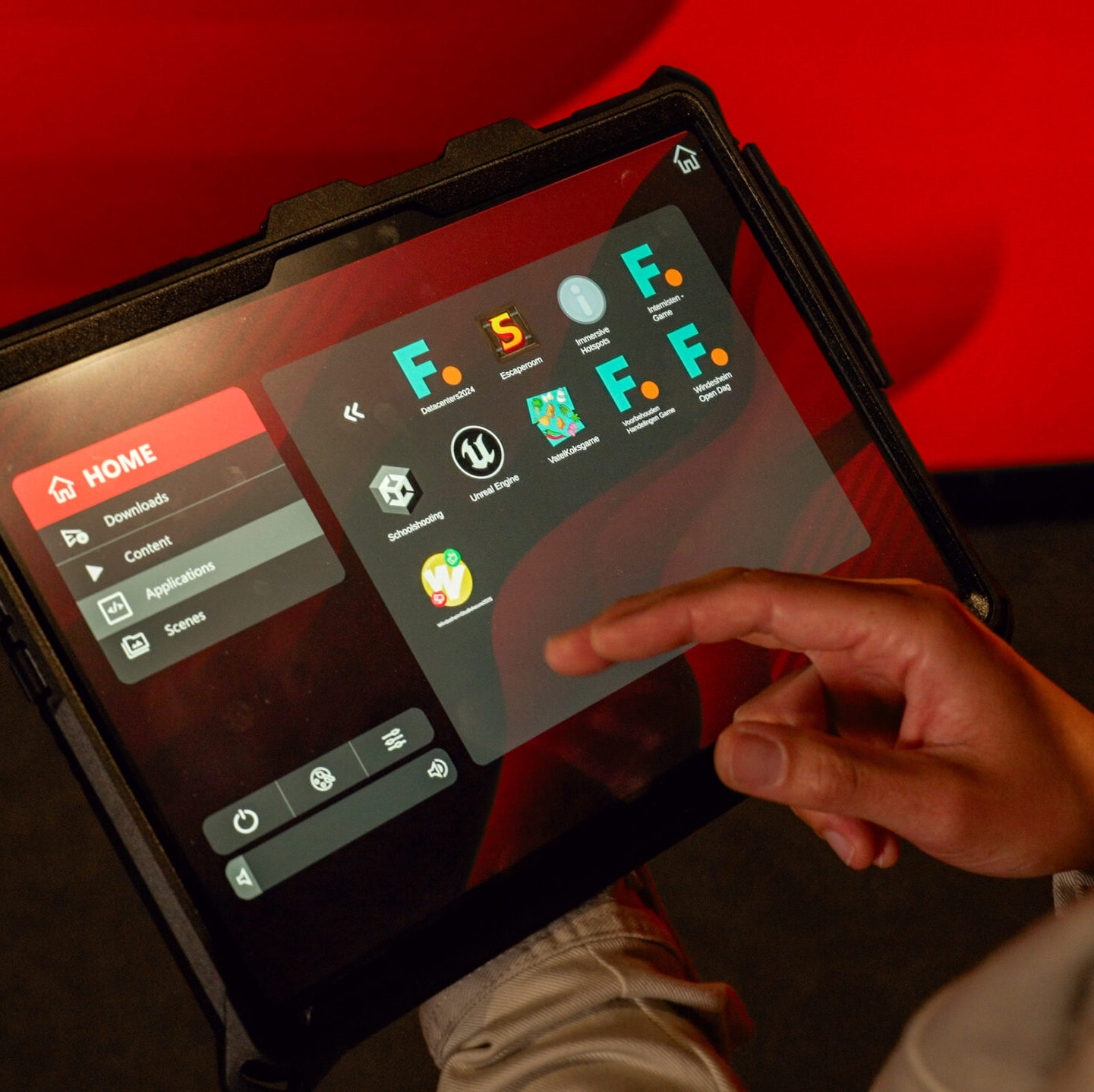
Immersive Launcher
Control the room
Start and shut down the room, open applications and media, adjust audio and lighting, and position content across individual walls or the entire space. Save combinations of media and room settings as scenes, ready to reopen from the tablet.
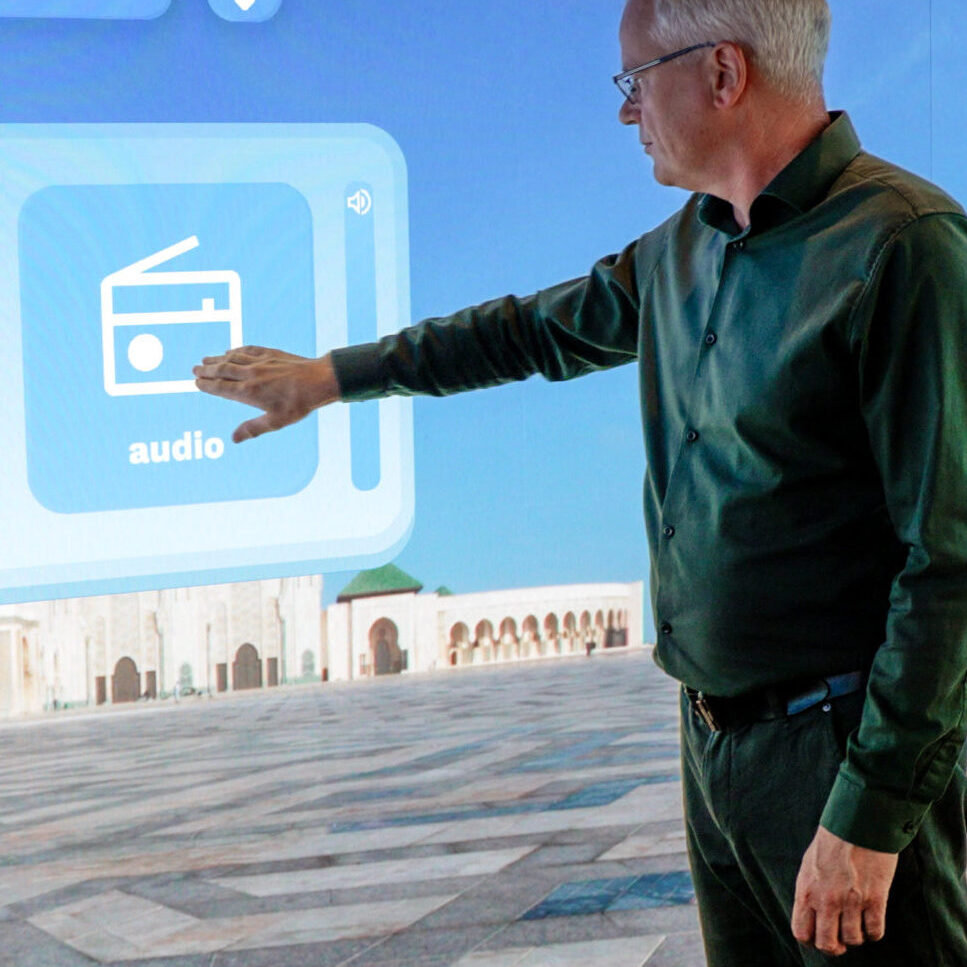
Immersive Hotspots
Create interactive experiences
Build your own scenarios without programming. Add a 360° image or video, place visible or invisible touch zones, and connect them to text, images, video, audio, websites, live sources or quiz questions. Test your scenario in a Virtual Room and export it for use in an immersive room.
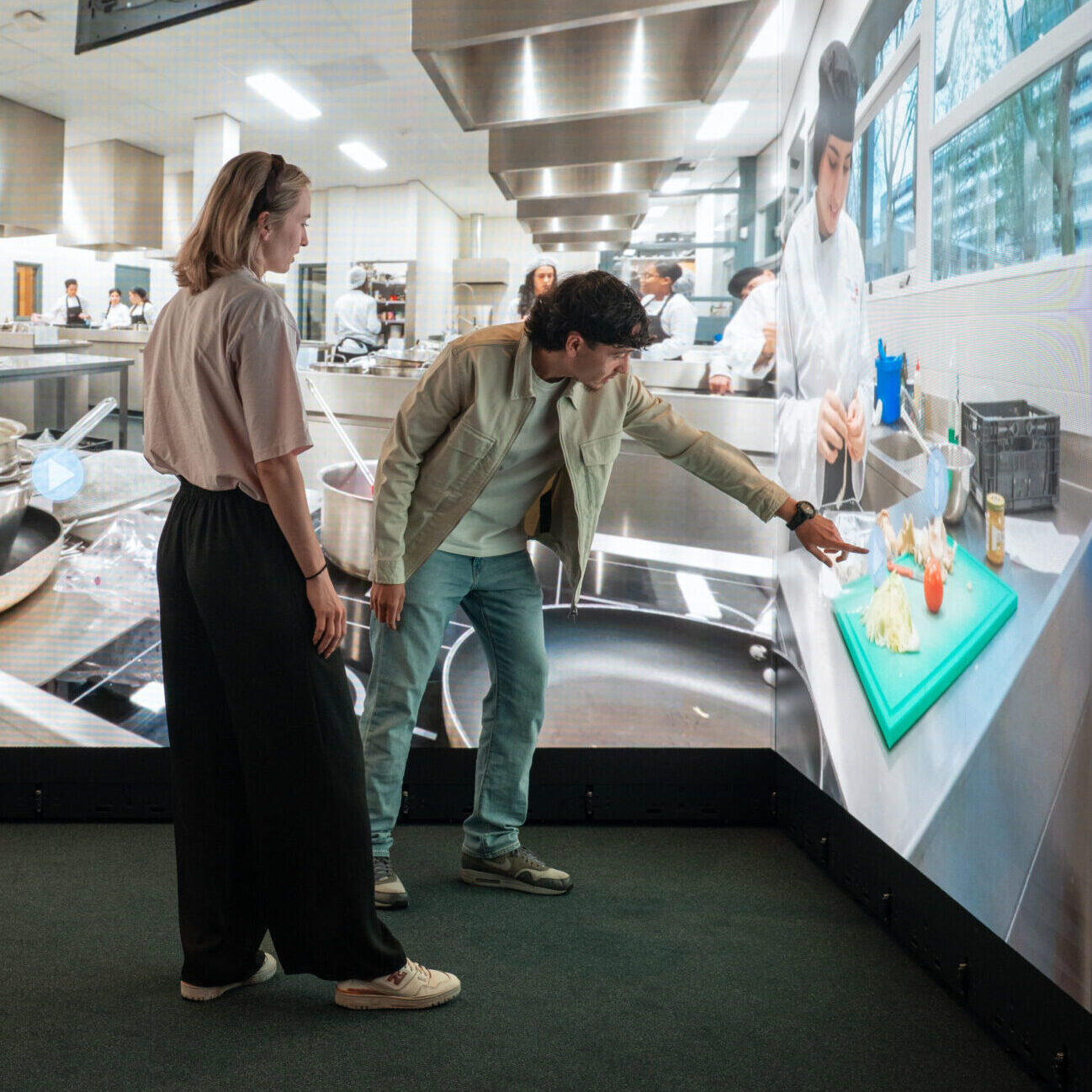
Immersive Touch
Enable wall interaction
Immersive Touch translates LiDAR detection into wall interaction without relying on a projector-mounted camera. Intelligent movement prediction helps make touch responses fluid and immediate.
How the tools work together
Launcher controls the room and presents media and applications. Hotspots creates interactive 360° scenarios, including quizzes and linked scenes. Touch translates LiDAR sensor data into wall interaction for supported applications. The modules work independently or together, depending on the installation. on the projection walls. Each module has a distinct role; Launcher does not create hotspots.
LED Walls and Existing Projection Rooms
Immersive Suite is designed for immersive environments built around LED walls, while also supporting the modernisation of existing projection-based rooms. An existing projection installation can be refurbished with updated software and new LiDAR touch technology while retaining its projection hardware, subject to an installation assessment.
Built for everyday use
- Education: present 360° environments and let learners explore information or answer questions.
- Training: combine immersive media, live video inputs and interactive scenarios.
- Visitor experiences: build tours and interactive presentations that people can explore.
- Meetings and presentations: reopen prepared scenes and display external sources in the room.
From setup to presentation
1. SET UP
Configure the immersive room and connected equipment.
2. CREATE
Prepare content and, if needed, build interactive scenarios with Hotspots.
3. PRESENT
Use Launcher to start the room, display content and manage scenes.
4. INTERACT
Let participants explore and respond through supported wall interaction.
This is an example workflow, not a required sequence. let participants interact using the available input system.
See Immersive Suite in action
Book a demonstration to discuss your room configuration, content and interaction requirements.
faq
Yes. Immersive Suite consists of separate tools that can be used individually or in combination.
No. Immersive Hotspots provides an editor for 360° environments, touch zones, media and quizzes.
Yes. Launcher supports images, video, audio, 360° media and configured live sources; Hotspots can also use 360° backgrounds and linked media.