
Immersive Hotspots: Create Interactive 360° Experiences Without Programming
Immersive Hotspots is the authoring tool in Immersive Suite. It lets you build interactive lessons, tours, training scenarios and presentations using 360° images or video, touch-enabled hotspots, media and quiz questions. You can create and test a scenario on a Windows computer in Virtual Room view, then export it for another installation.
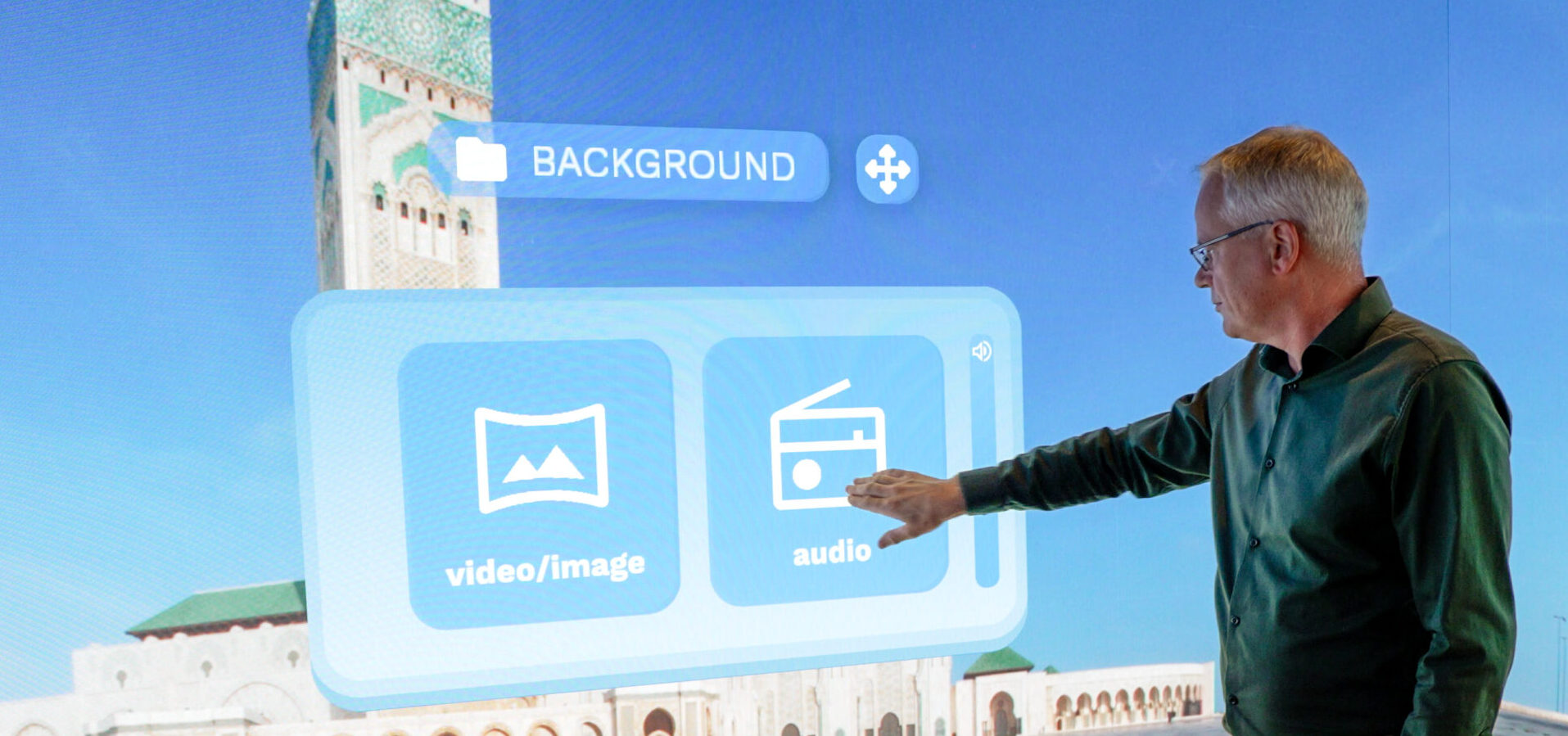
Start with a 360° environment
Choose a 360° image or video as your background and rotate it to the correct viewing direction. Add ambient audio or background music, or use a flat image when a 360° background is not required.
Make any part of the scene interactive
Place a hotspot on a door, object or area of the environment. Show it with an icon or custom image, or make the touch zone invisible so the background itself becomes interactive. Resize the active area to suit the content and the users.
Connect hotspots to content
A hotspot can open text, images, video, audio, a website or a video stream. External video sources such as a webcam or compatible capture input can also be displayed, including multiple inputs at once. Available sources depend on the system configuration.
Add quiz questions with feedback
Create multiple-choice questions with one or more correct answers. Add feedback to explain an answer, not just mark it right or wrong. This makes Hotspots suitable for interactive lessons and training exercises.
Connect environments into a tour
Use Scene Link hotspots to move between different 360° environments—for example, by touching a door or arrow. Scene Link is a standard feature of Immersive Hotspots.
Create, test and share
Switch between Edit Mode and Play Mode to check hotspot placement, readability and audio levels. Export a completed scenario as a file and import it on another installation. This allows preparation on a regular Windows computer before use in the immersive room.
Example: an interactive training scenario
Begin with a 360° workplace scene. Let participants touch a machine to view an explanation, open a short video, answer a question and move to another location. The scenario is assembled in the editor rather than programmed from scratch.
Make your Immersive Room interactive
Watch the Hotspots tutorial or ask for a demonstration of a complete interactive scenario.
faq
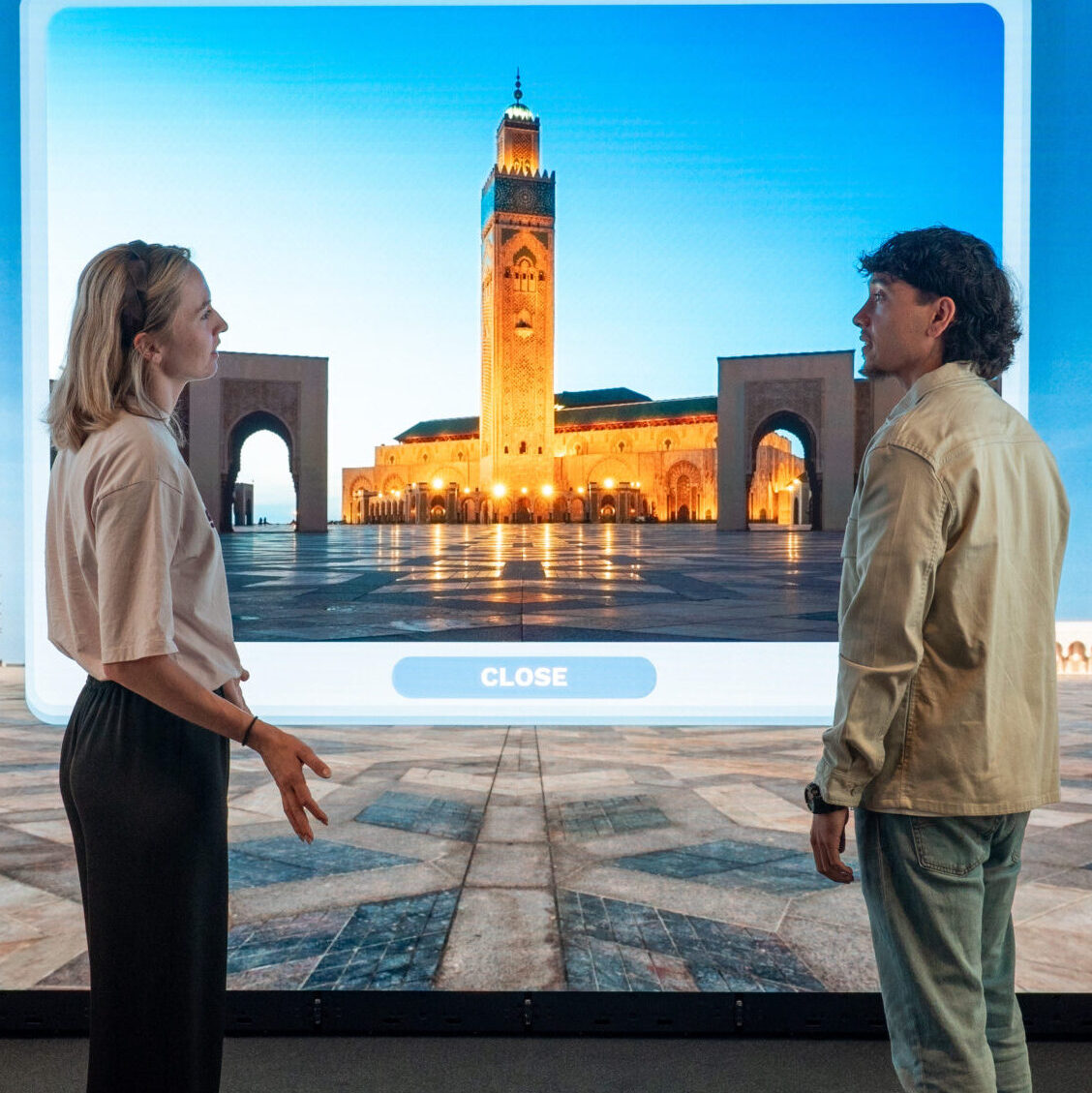
No. Hotspots uses an editor to place interactive zones and assign actions.
Yes. A touch zone can be placed directly over an object in the background without displaying an icon.
Yes. Use the Windows Virtual Room view, then export and import the scenario.